
Set up the Win Challenge overlay in OBS
Your challenges are on screen, the clock is running, and you drive it all from a dock in OBS.
A win challenge is a list of games, each with a goal, plus a time limit and a forfeit if you fall short. The Win Challenge overlay shows that list with its countdown on stream, and its control panel sits as a dock inside OBS where only you can see it. It is free and needs no account and no bot. The overlay itself is in German or English, the video is German.
Video guide
Step by step
// How it works
-
01
Install it from the Config Hub
Open the Config Hub, pick Win Challenge, enter your Twitch channel and choose a folder when you save. The hub needs Chrome or Edge. Then open the settings via Change the look. Under The run sit the three values every win challenge needs: the time limit in minutes (240 is four hours), the forfeit shown large on the overlay, and the number of jokers. All of them can still be changed during the run.
-
02
Bring in your challenges from a spreadsheet
Win challenge lists nearly always start in a spreadsheet or on Discord, so that is where the hub takes them from. In the settings, under Content from a spreadsheet, click Import, then get the template: an Excel file with five sample rows and the columns Challenge, Count and Mode. Count is how often a challenge has to be done (empty means once). Mode
streakturns it into a streak, where a loss resets the counter to zero. Fill it in, save as .xlsx or .csv, pick it under Upload file, and the hub shows you which rows it recognised before anything is saved.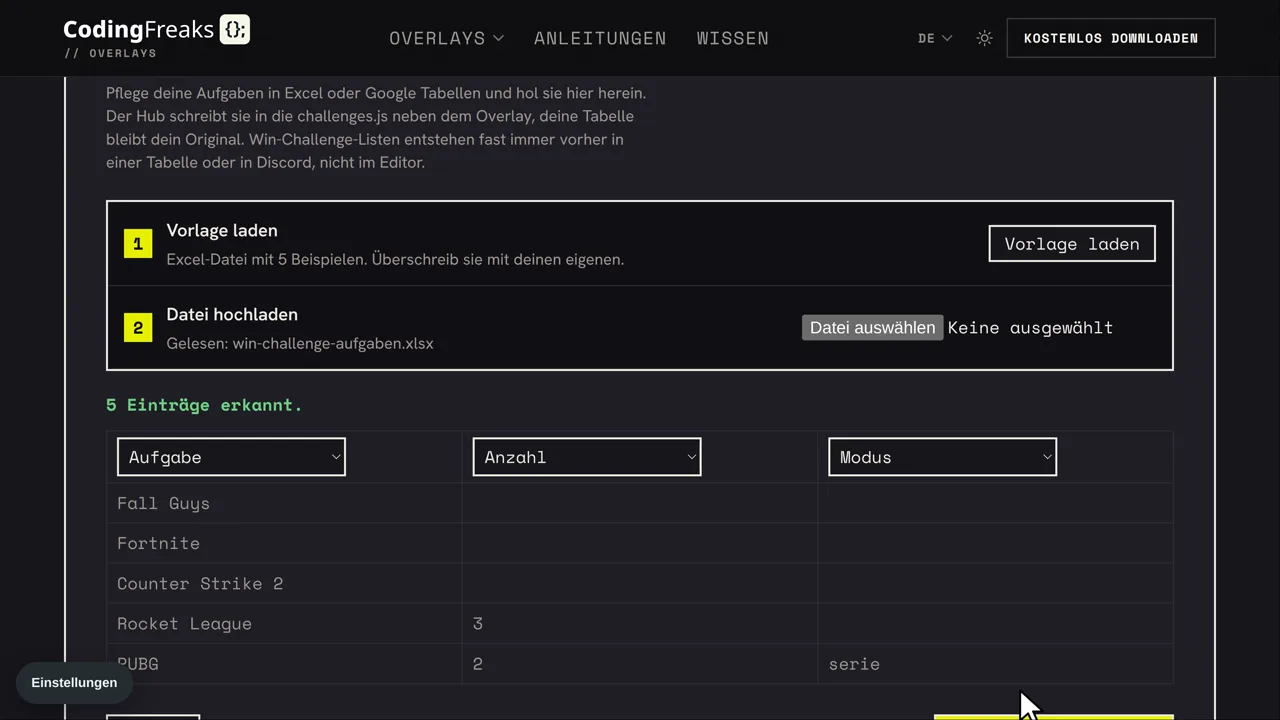
Five rows from the template, five entries recognised. Rocket League three times, PUBG twice in a row. -
03
Add the overlay as a browser source
In OBS click the plus under Sources, then Browser. Tick Local file, choose the
widget.htmlin thegames/win-challengefolder, width 1920 and height 1080. The panel places itself in a corner, which one is set in the hub under Display. If any of these moves trips you up, the general guide to browser sources walks through them in detail.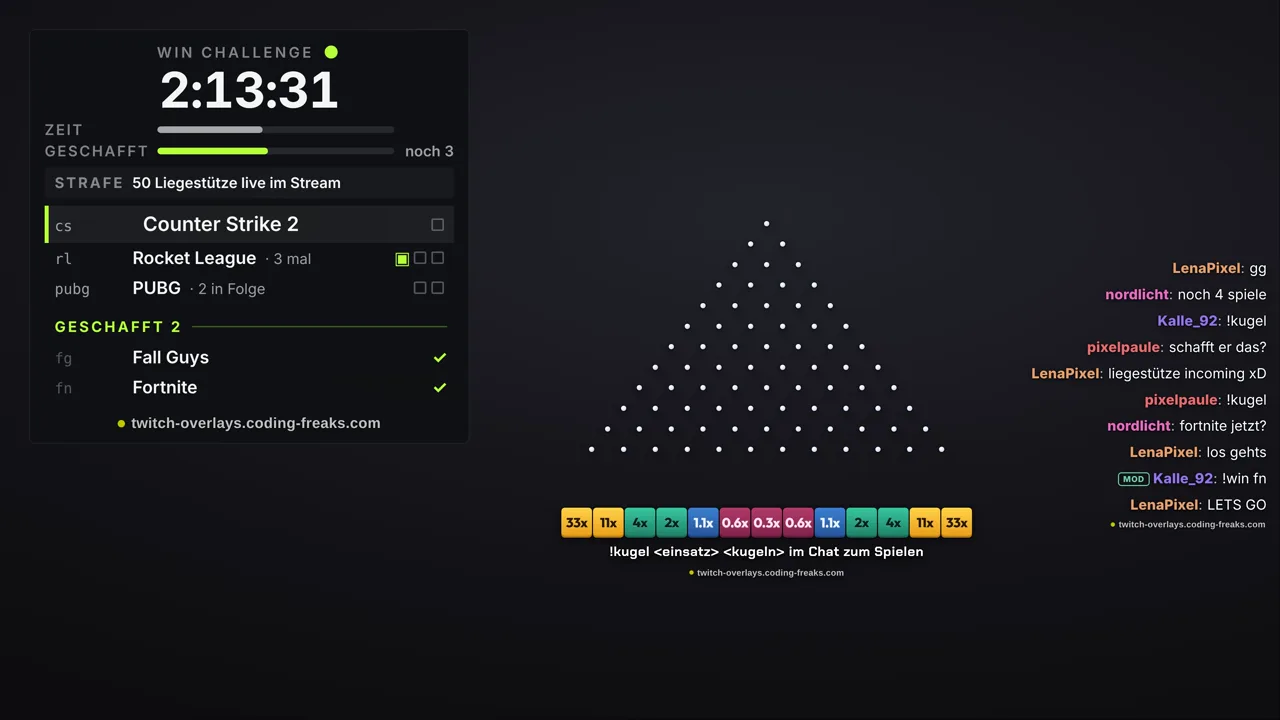
What your viewers see: the clock on top, the forfeit below it, open challenges first. -
04
Add the control panel as an OBS dock
The control panel is a second page next to the overlay, the
host.html. It does not go into a scene but into the OBS window as a dock. At the end of the setup you enter the path of your folder in the hub once, and the finished address for the control panel appears there, ready to copy. In OBS open Docks in the top menu bar, then Custom Browser Docks (up to OBS 29 it sits under View). Enter a name, for example Win Challenge, paste the address from the hub, Apply. Do copy the address from the hub rather than typing it: the dock and the source only find each other when both addresses have the same form, and for a source added with Local file the right form starts withhttp://absolute/.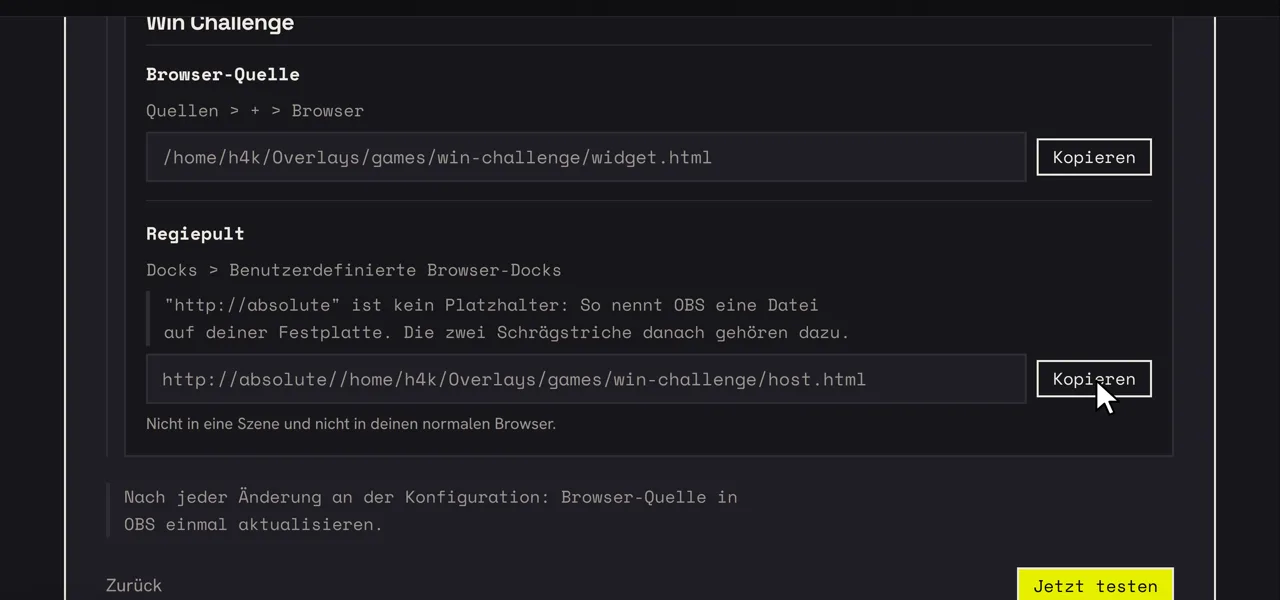
Top: the address for the source. Bottom: the one for the dock. The http://absolute is not a placeholder, it is how OBS names a file on your disk. 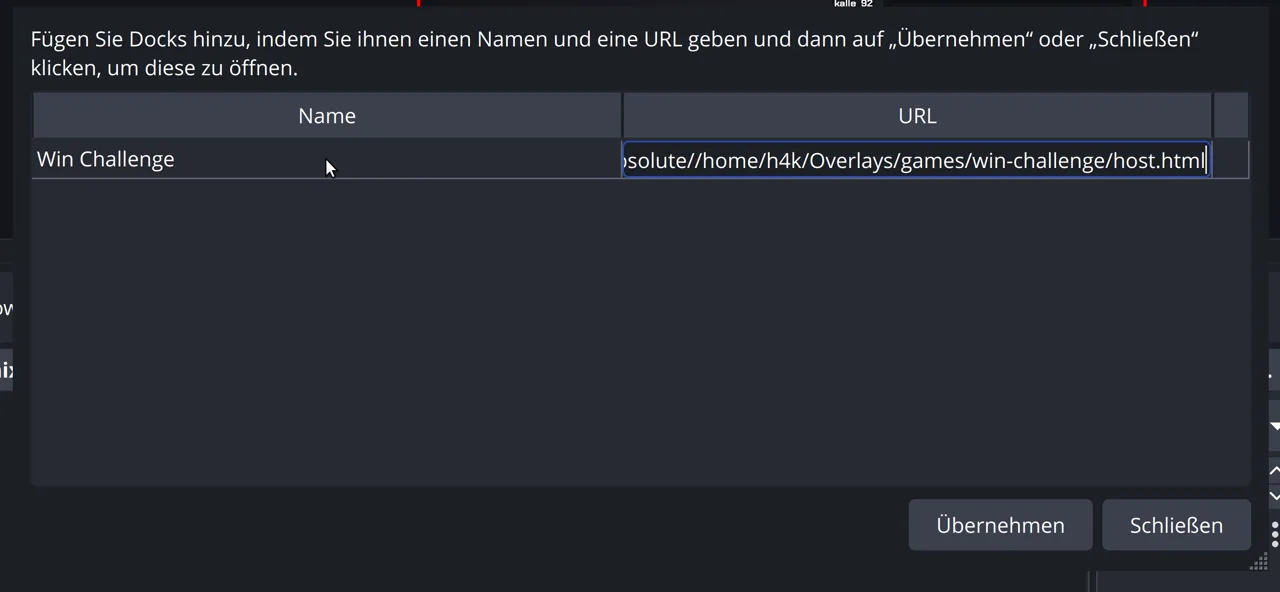
Name, address, Apply. The dock then opens as a window of its own. -
05
Put the dock next to your preview
The new dock first floats as its own window. A double click on its title bar docks it, then drag the edge towards the preview until the buttons are easy to read. The panel says connected at the top as soon as it has found the overlay. If it says anything else, the address was almost always typed by hand instead of copied from the hub. The dock never shows up on stream, it is part of OBS, not a source.
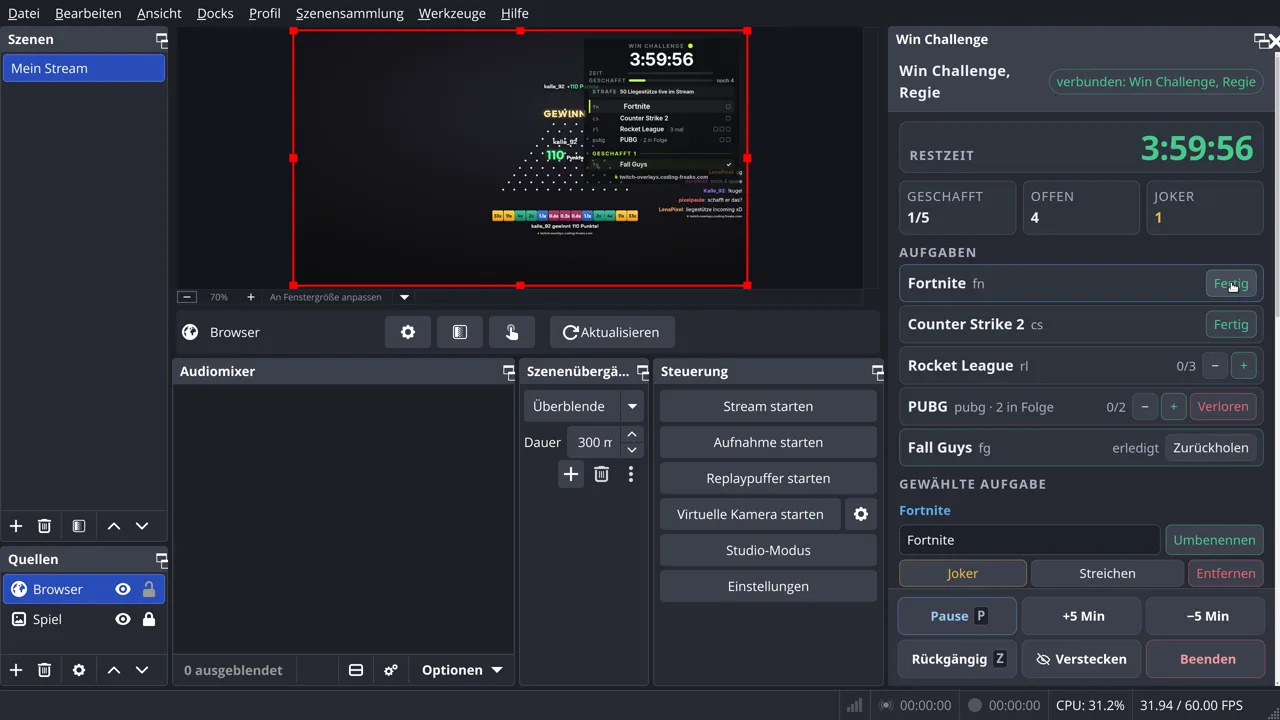
The preview with the overlay on the left, the panel on the right. Whatever you click there is on screen the same moment. -
06
Run the challenge
Start sets the clock running. A challenge that has to be done once has a Done button. Counters have minus and plus and tick themselves off at the goal. Streaks also have Lost, which resets the counter to zero. Clicking the name of a row selects it, and the Selected challenge block below holds Joker, Strike off and Rename. At the bottom sit Pause (key P), adding or removing time in steps of five minutes, and Undo (key Z). Once every challenge is settled, End run turns into the green Bank the win button, and only that one brings up the result card.
-
07
Your mods in chat
Whoever is not at the panel reports in chat.
!wincounts a win on the active challenge,!win pubgon a specific one, the key is printed at the start of each row.!failreports a loss and resets a streak,!undotakes back the last action. The rarer things go through!wc, for example!wc pause,!wc zeit +30mor!wc ende. Out of the box mods and you may use them. If two mods report the same win at the same moment, it still counts once.
Frequently asked
// In short
What happens if OBS crashes?
Nothing bad. The clock counts against a real time of day, not against how long the overlay has been open. After a restart, a scene switch or a reload of the source it is exactly where it should be to the second, and the list is unchanged.
And when the time runs out?
Out of the box the run carries on and the clock counts the overtime up in red. In the hub you can instead have the run fail at once or the clock simply stop. A run never ends on its own: it ends with Bank the win, End run or !wc ende.
Does a joker count as done?
It settles the challenge for the win but is not counted among the finished ones. Win with a joker and the result card says 4 of 5, for example, which is honest: one challenge was skipped, not played.
Can a group run it together?
Yes, there is a team mode with participants, assignment and a team bar. Each participant may report their own challenges without mod rights. Note: each overlay shows what was reported in its own chat and does not sync with the other participants' overlays.
Can I change challenges during the run?
Yes. Add new ones at the bottom of the panel, rename, strike off or remove rows, and in chat use !addchal, !wc name, !wc tausch or !wc ziel. A challenge keeps its key throughout, so !win keeps hitting it.
Win Challenge
View and download this overlay.