
Set up a Pomodoro timer in OBS
A focus and break timer, and a list your chat fills with its own goals.
The Focus Room is a Pomodoro timer overlay for OBS, made for study-with-me and co-working streams. The timer splits your stream into focus and break, 50 and 10 minutes by default. Your viewers post their goals with !task and tick them off with !done. You run everything from a dock inside OBS: start the timer, add your own goals, check off tasks from chat. It is free, needs no account and no bot, and works in English and German.
Read with AI
Video guide
Step by step
// How it works
-
01
Set it up in the Config Hub
Open the Config Hub, pick the Focus Room, enter your Twitch channel and click Next. Under Look and position you can already choose whether the cards sit on the left or the right, whether your own goals get a card of their own, and whether floating bubbles with your viewers' avatars drift across the screen. Set the language to English in the display step. Tick the terms of use, choose a folder and save. The hub needs Chrome or Edge.
-
02
Add it as a browser source in OBS
In OBS click the plus under Sources, then Browser. Tick Local file, choose the
widget.htmlin thegames/coworkingfolder, width 1920, height 1080, OK. The Focus Room is a transparent layer over your scene, only the timer and task cards show. If any of these moves trips you up, the general guide to browser sources walks through them in detail. -
03
Add the director's panel as an OBS dock
You run the Focus Room from the director's panel, a second page next to the overlay called
host.html. It does not go into a scene, it goes into the OBS window as a dock. In the hub's OBS step, enter the path to your folder once, and the panel's address appears there ready to copy. In OBS open Docks in the menu bar, then Custom Browser Docks (up to OBS 29 it sits under View). Enter a name, paste the address from the hub, Apply. Do copy it from the hub: dock and source only find each other when both addresses have the same form.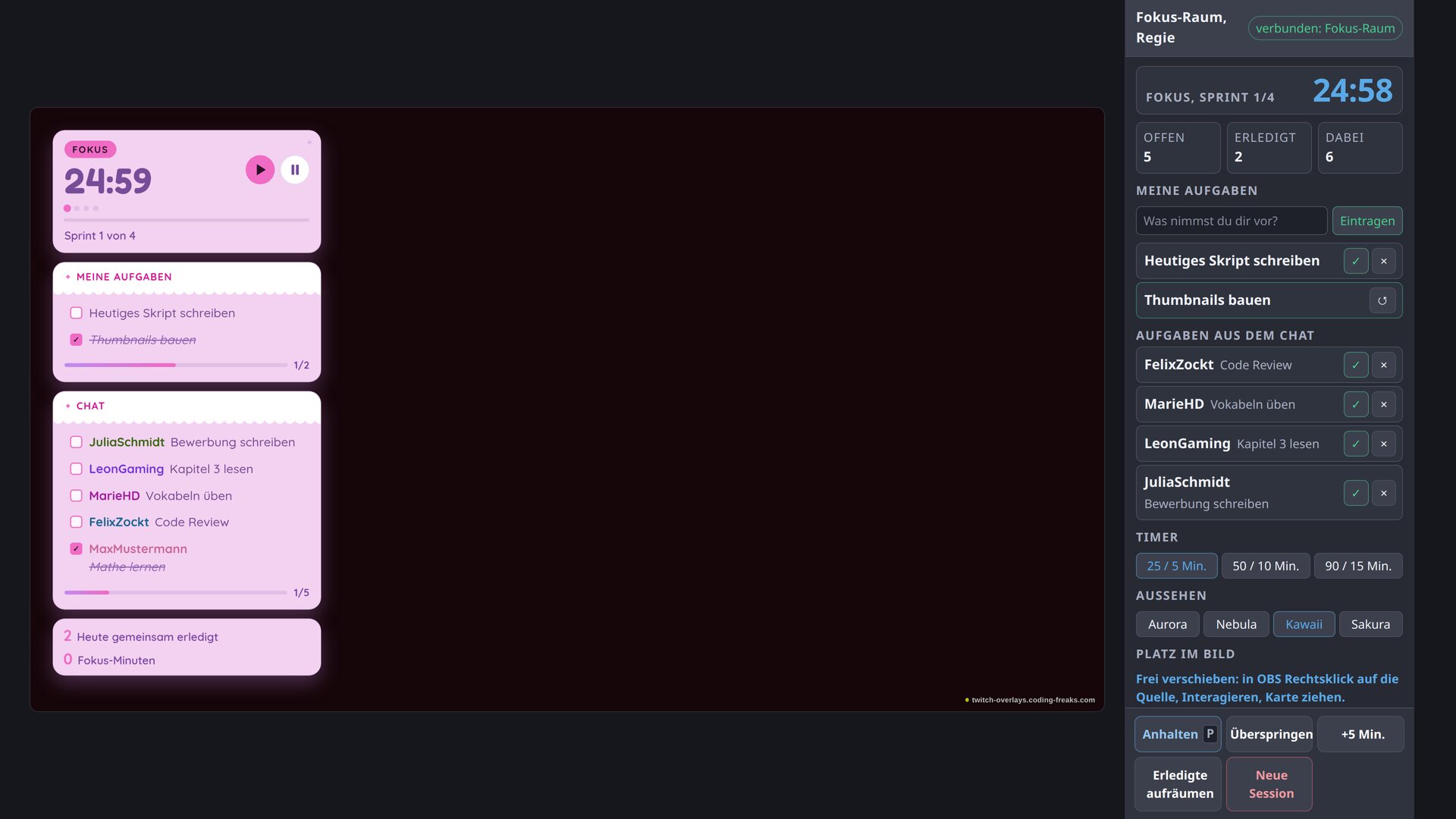
The overlay on stream on the left, the director's panel as an OBS dock on the right. -
04
Start and run the timer
Under Timer in the panel pick a length: 25 and 5 minutes, 50 and 10, or 90 and 15. Then Start focus. A session has four focus blocks by default with a break between each, and the dots under the clock show which one is running. Pause holds the clock, Resume carries on, and the P key does the same while the dock has focus. Skip ends the current block, +5 min extends it. New session clears the board and asks once before it does. Your mods can run the timer from chat too:
!timer 25/5/4starts 25 minutes of focus, 5 minutes of break and four blocks, plus!pause,!resumeand!skip. -
05
The task list in chat
Every viewer posts a goal with
!task, for example!task read chapter 3. Several at once work with a comma:!task emails, workout, vocab.!doneticks off the newest open goal,!done 2the second one. Finished goals stay on the board struck through, and the bottom card counts what the whole chat got done today.!edit 2 new textchanges a goal,!remove 2deletes it,!focus 1highlights the one someone is working on right now. The commands match what most co-working streams use, so your chat has nothing new to learn. -
06
Your own goals and moderation in the dock
Add your own goals in the panel under My tasks, without typing into your own chat. The check mark ticks one off, the cross deletes it. Below that are the tasks from chat, where you can tick off or delete a line that does not belong on stream. Clear done takes every finished goal off the board and leaves the open ones. In chat, mods do the same with
!cleardone,!clearfor every task and!adel namefor one viewer's tasks. -
07
Look and position on screen
Under Look in the panel you switch between four designs: Aurora and Nebula are dark, Kawaii and Sakura are light and playful. Under Position you move every card to the left or the right. To place cards freely, do it right in OBS: right-click the source, Interact, then drag each card where you want it. The position survives a restart. Reset positions in the panel brings every card back. Whatever you pick in the dock stays until you change the same setting in the hub.
Frequently asked
// In short
Do the tasks survive an OBS restart?
Yes. The Focus Room keeps tasks, the timer and the count of finished goals in OBS's browser storage. After a restart the timer carries on where it stood. If OBS was closed in between, it moves on by one block at most. The board only clears with New session in the panel or !reset in chat.
Do I need a bot like Streamer.bot or Nightbot?
No. The Focus Room reads your Twitch chat directly, and the timer, the tasks and the panel all work without a bot. You only need one if the overlay should also post to chat, for example a viewer's own goals on !check or a message when a break starts.
How many tasks can one viewer add?
20 open goals per viewer by default, plus a 3 second cooldown between two !task, so nobody floods the list. Both are under All settings for this overlay in the hub. You can rename the commands there too, in case another overlay in the same stream already listens to !task.
Which Pomodoro length suits a study stream?
25 minutes of focus and 5 of break is the classic Pomodoro and suits short study sessions. 50 and 10 is common on Twitch, because the break is long enough to chat. 90 and 15 suits deep work you do not want interrupted. You can switch any time in the panel, and the new length applies from the next block.
Can my chat use German commands?
Yes. !aufgabe, !fertig, !entfernen and the other German names work alongside the English ones, in both languages of the overlay. That helps when your community is mixed.
Focus Room
View and download this overlay.